Welcome to Golden Customer Care!
If you are having any issues, please reach out to Golden Customer Care’s IT Department:
support@goldencustomercare.com
Text
(833) 201-3049
Click below to show instructions on setup
-
Golden Customer Care
Remote WorkStation Setup Guide
(Laptop)
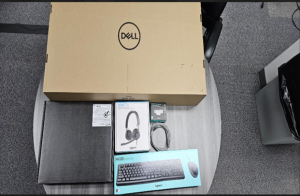
* Text IT @ (833)201-3049 for any assistance with the setup process
** If you encounter trouble or need assistance/have questions please contact us immediately! Please do not wait until Monday to contact IT! **
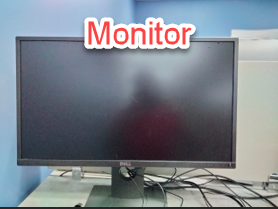
- Unbox the monitor and assemble stand (instructions are in the monitor box) and plug the monitor power cable in and plug the power cable into a wall outlet
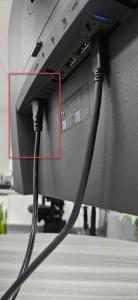
- Plug the USB-C cable into the monitor. Please make sure to plug the USB-C cable into the port labeled 90W, this will allow the laptop to charge
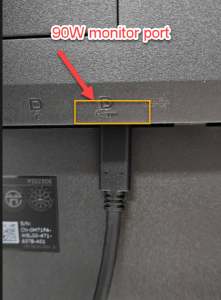
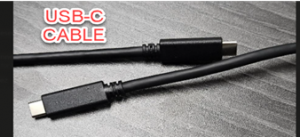
- Plug the USB-C cable from the monitor into the laptop. There is only 1port on the laptop the USB – C cable can be plugged into.
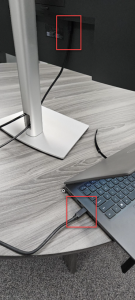
- The headset, the webcam, the mouse/keyboard and the Ethernet cable can all be plugged into the monitor. The Ethernet port highlighted with a yellow square will plug into the monitor and then your home router/modem

- Please press the power button located on the back of the monitor to turn it on and use the directional switch to select the correct language for the monitor.
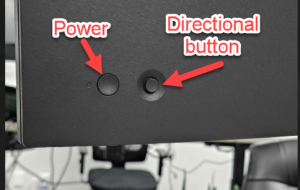
Please note that we will not be using an HDMI cable. The USB – C cable will allow the laptop to display on the monitor.
Please note that we will not be using the provided laptop charger as the monitor will charge the laptop from the USB – C cable
Please be sure that the USB – C cable is plugged into the monitor port labeled 90W
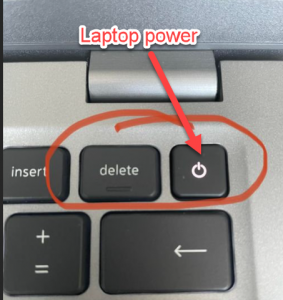
- Press the laptop power button (if the laptop is not already on) to follow the next steps
- Turn your PC on and you should see a blue page prompting you to select a region. Select United States
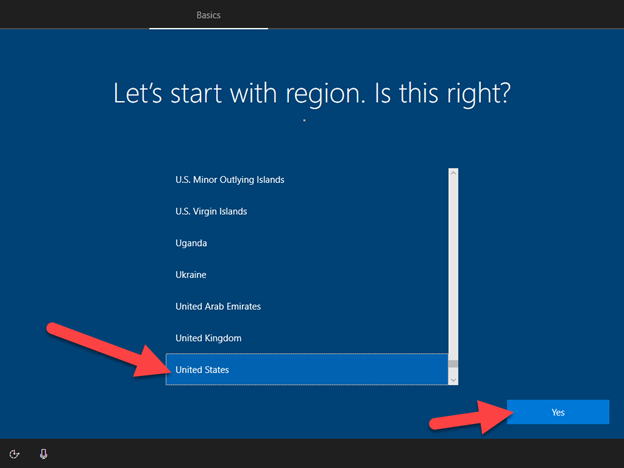
- Select US keyboard layout

- Select Skip
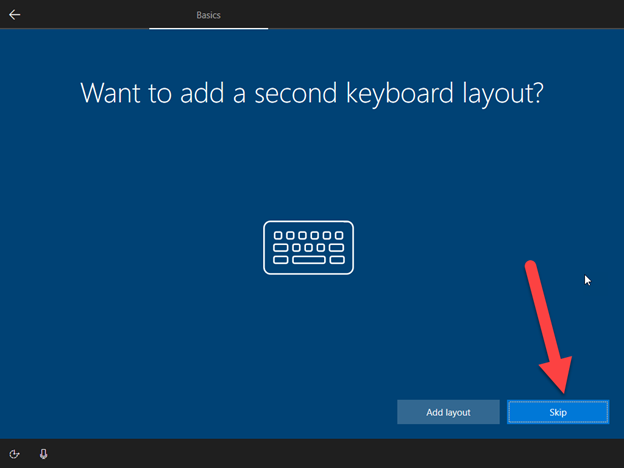
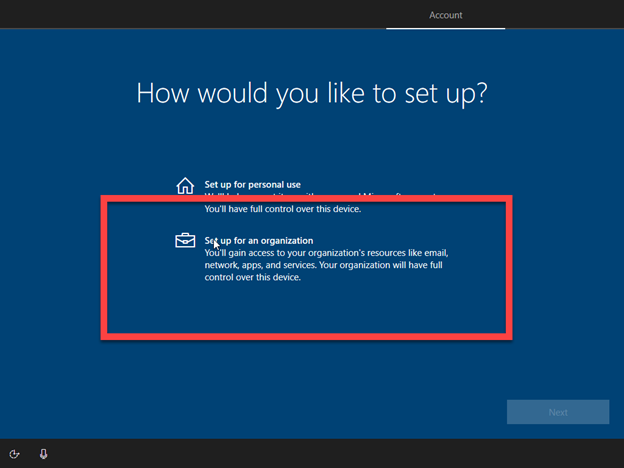
- Select setup for organization. It is very important that you select setup for organization. If you do not, the PC will not be suitable for your job duties!
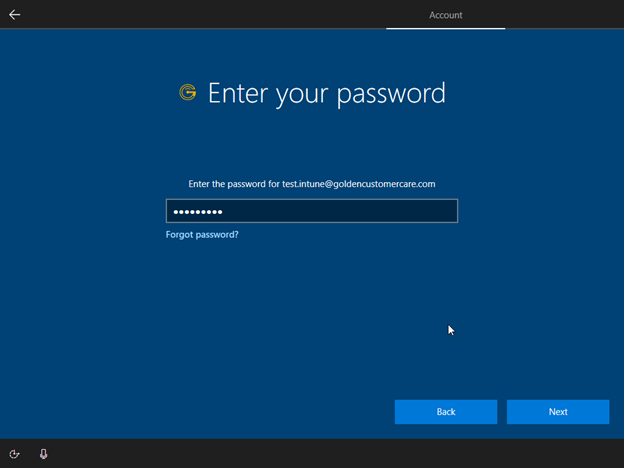
- You should now see a blue login page asking for your email address. Use the format firstname.lastname@goldencustomercare.com (Ex: john.doe@goldencustomercare.com)

- Default Password – Goldencare123!
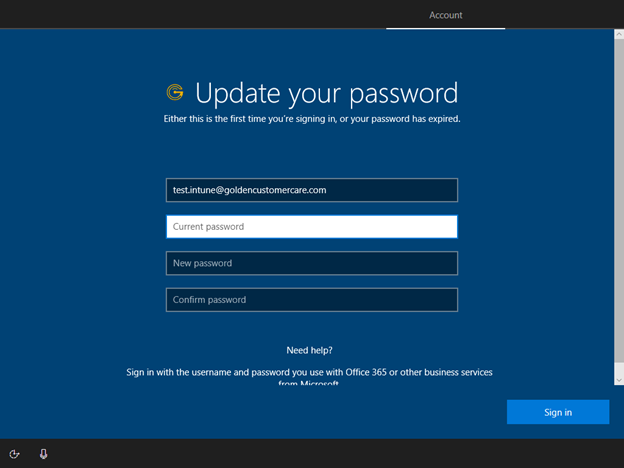
It will then prompt you for a password change. Your current password is Goldencare123! and your new password is one of your choosing.
Note: Passwords must use 3 of the 4 following requirements:Uppercase, lowercase, numbers, and symbols.
Make passwords at least 10 characters long with a combination of letters (uppercase and lowercase), numbers, and symbols.
Don’t use the same password for multiple accounts
Don’t share your passwords with others
Don’t use generic passwords (birthdays, names, password)
Don’t write down passwords
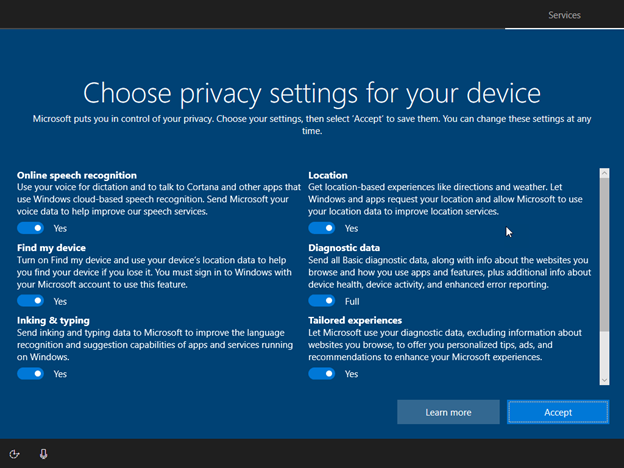
- Click Accept on the privacy settings page
- click Yes to save your activity history

*Call IT @ (801) 252-6088 for any assistance with the setup process. After you have successfully connected your PC, leave your computer connected and a member of GCC IT will contact you for your system check at your scheduled time.If you are calling on the weekend you can also send an email to support@goldencustomercare.com in addition to calling that number.
Content Guide
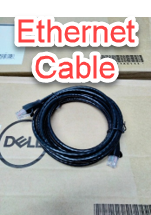
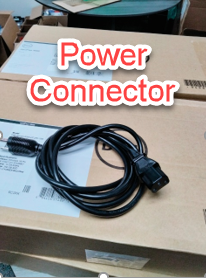
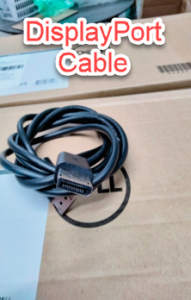
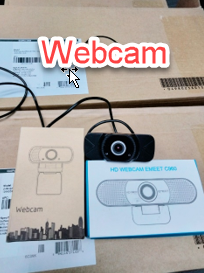
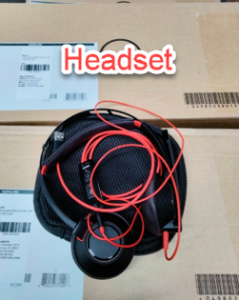
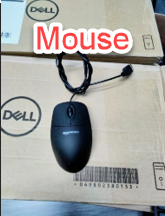
Please verify you received everything on the following page. Items may arrive in 1 of 3 boxes.
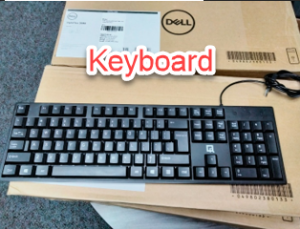
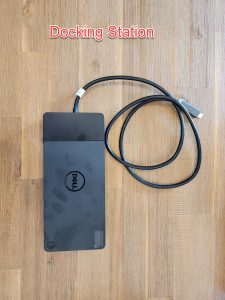
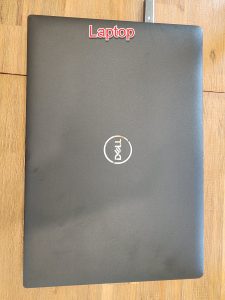
-
Golden Customer Care
Remote WorkStation Setup Guide
(Full PC)
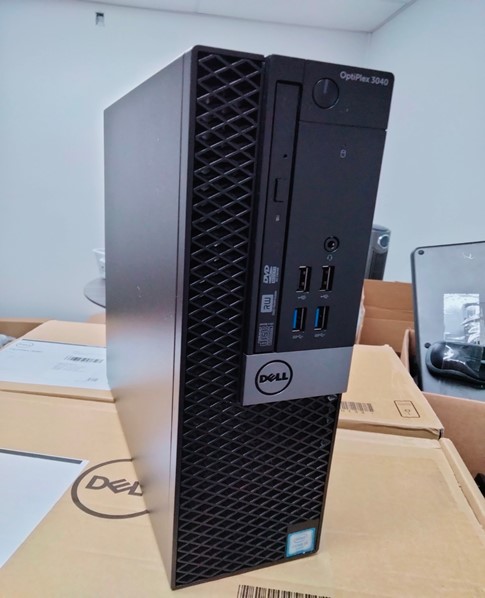
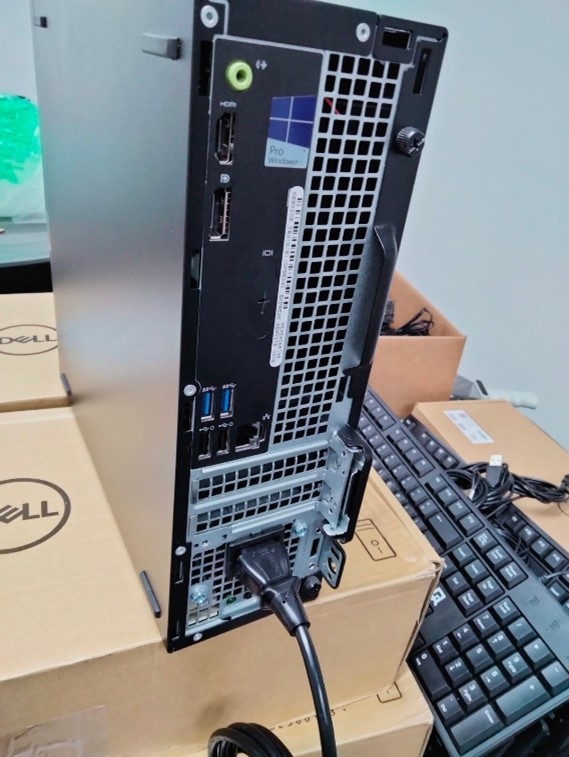
- Plug the power connector into the PC, and then into wall outlet.
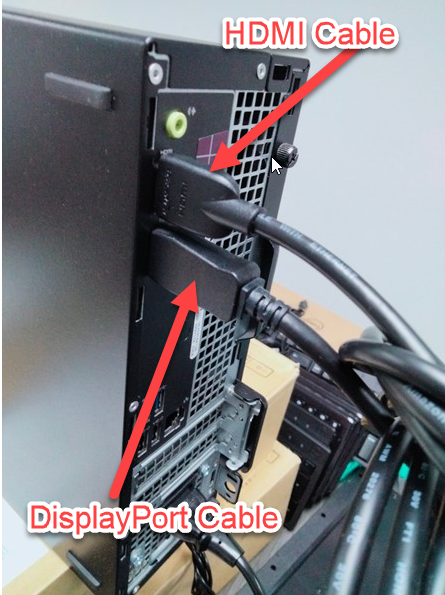
- Plug HDMI and Display port cable into the PC. Top cable is HDMI, bottom cable is Displayport.
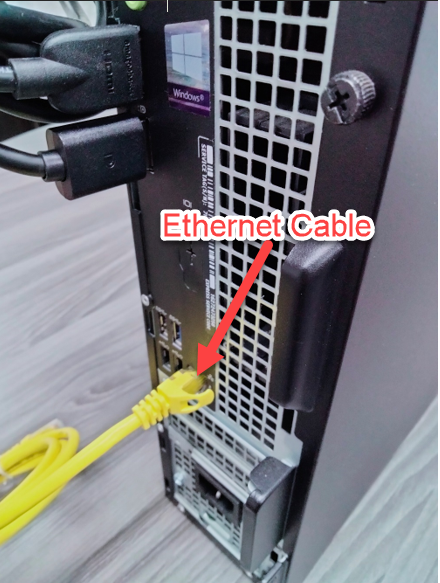
- Plug the Ethernet cable into the back of the PC, and then into your home router\modem\wall jack. The color of ethernet cable you receive will vary. Despite the color, the cable functions the same way. There is only 1 spot for the Ethernet cable on the back of the PC
-
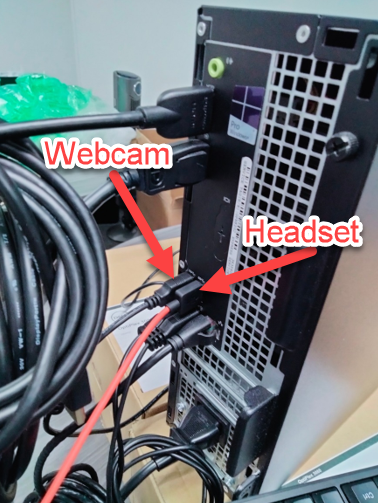
Plug the webcam and headset into the USB ports on the PC. It does not matter if you plug the headset and webcam into the front or back USB ports on the PC. Do not plug the webcam and headset into the monitor USB ports.
- Plug the HDMI and Displayport Cable into each monitor. Do not link the 2 monitors together. One monitor will be plugged in with HMDI, one will be plugged in with Displayport. Please refer to Figure 1 and 2
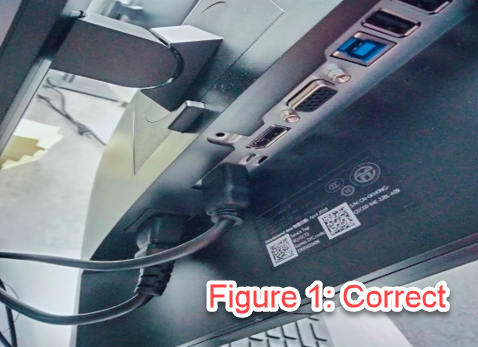
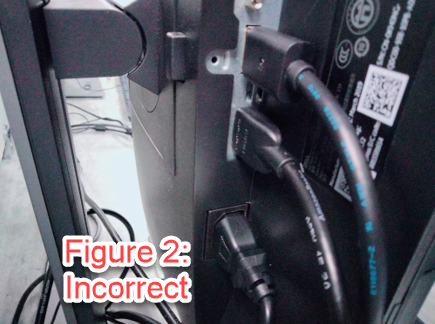
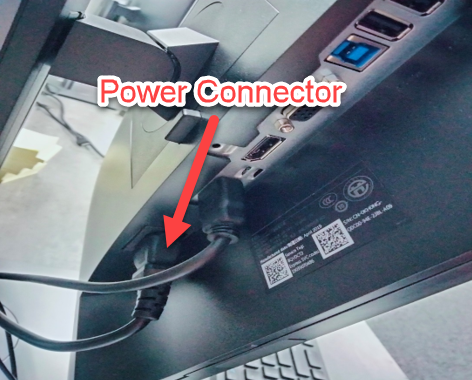
- Plug the power connector into each monitor, and then into a wall outlet.
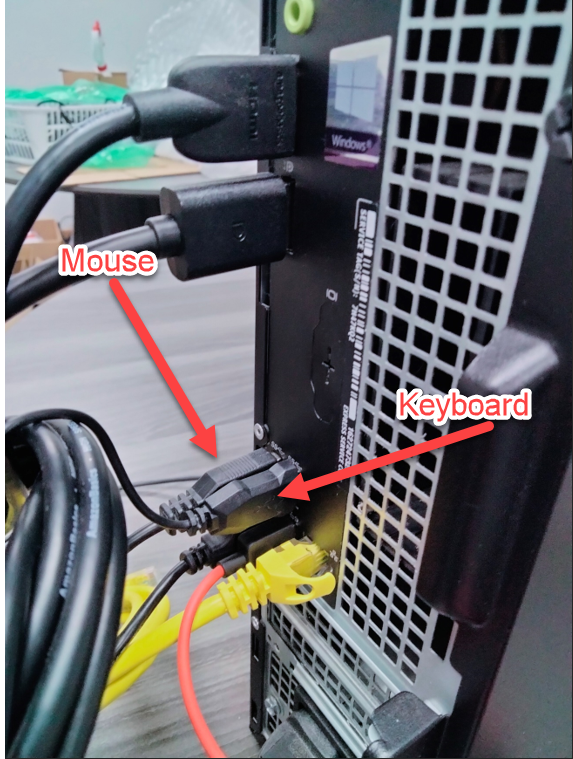
- Plug the mouse and keyboard into the USB ports on the PC, the model of mouse and keyboard you receive will vary but will function the same despite the look. It does not matter if you plug the mouse and keyboard into the front or back USB ports. Do not plug the mouse and keyboard into the USB ports on the monitor.
- Press the power button on the PC to turn the PC on. Follow the next steps in the packet and on-screen guide to complete the rest of the setup.
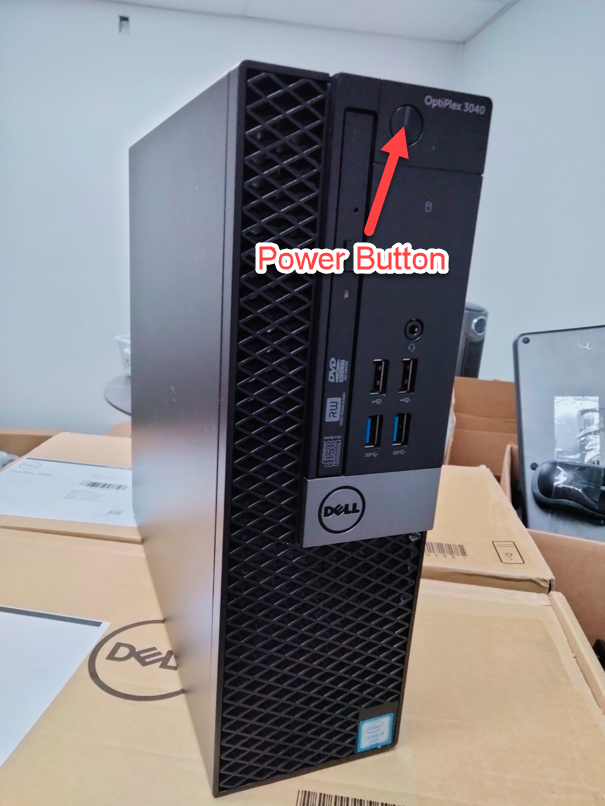
- Turn your PC on and you should see a blue page prompting you to select a region. Select United States
- Select US keyboard layout
- Select Skip
- Select setup for organization. It is very important that you select setup for organization. If you do not, the PC will not be suitable for your job duties!
- You should now see a blue login page asking for your email address. Use the format firstname.lastname@goldencustomercare.com (Ex: john.doe@goldencustomercare.com)
- Default Password – Goldencare123!
It will then prompt you for a password change. Your current password is Goldencare123! and your new password is one of your choosing.
Note: Passwords must use 3 of the 4 following requirements:Uppercase, lowercase, numbers, and symbols.
Make passwords at least 10 characters long with a combination of letters (uppercase and lowercase), numbers, and symbols.
Don’t use the same password for multiple accounts
Don’t share your passwords with others
Don’t use generic passwords (birthdays, names, password)
Don’t write down passwords
- Click Accept on the privacy settings page
- click Yes to save your activity history
*Call IT @ (801) 252-6088 for any assistance with the setup process. After you have successfully connected your PC, leave your computer connected and a member of GCC IT will contact you for your system check at your scheduled time.If you are calling on the weekend you can also send an email to support@goldencustomercare.com in addition to calling that number.
Content Guide
Please verify you received everything on the following page. Items may arrive in 1 of 3 boxes.
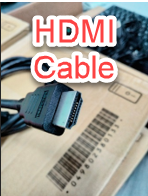
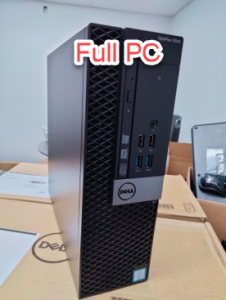
- Plug the power connector into the PC, and then into wall outlet.